
Southern PinesMPR
Recording
Record video and audio on the HyperDeck, or audio only on the SQ-6.
- Back it up first
- Formatting erases everything on the card or USB stick
- Video and audio
- HyperDeck · your ministry’s SD card
- Audio only
- SQ-6 soundboard · a USB stick
Video and Audio
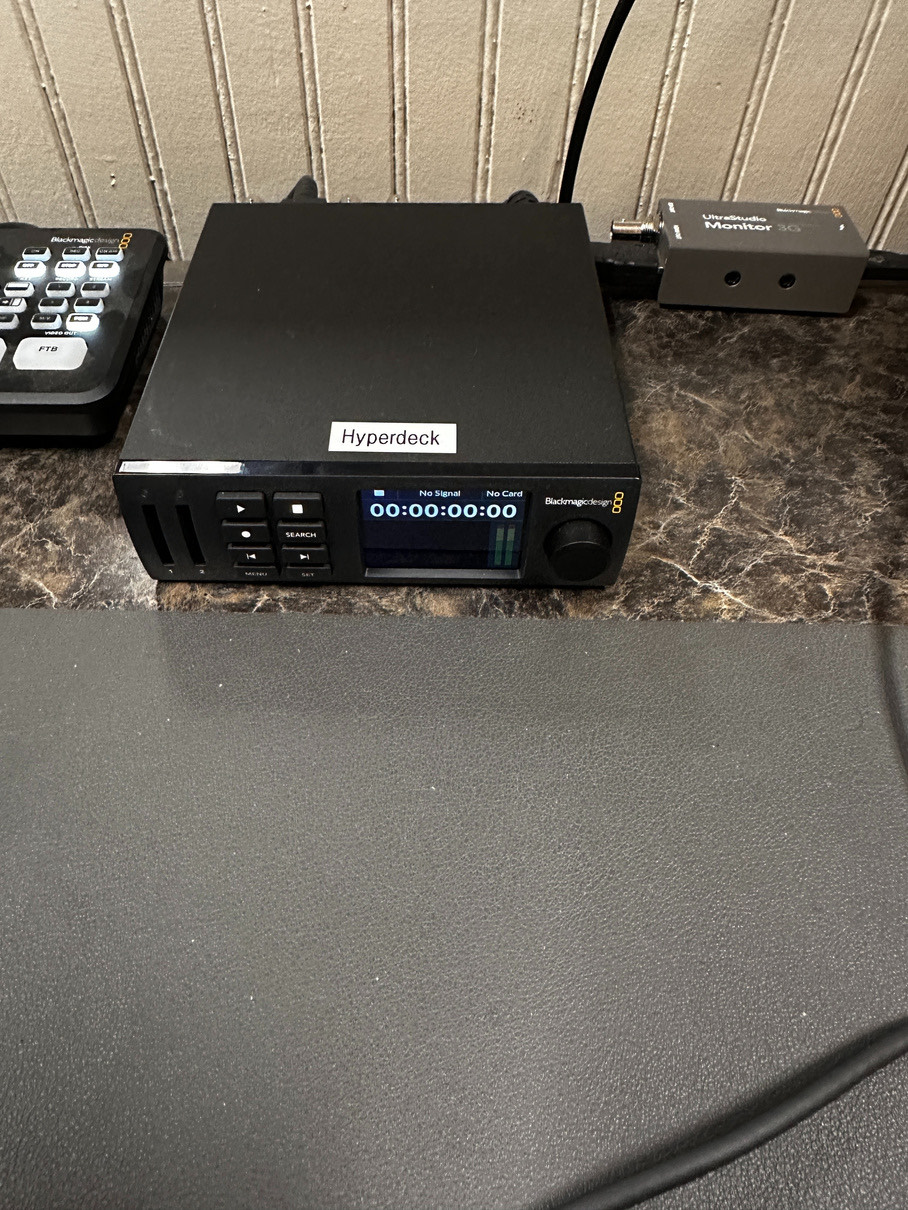
The HyperDeck connects to the camera and records both.
- Insert the SD card
Use your ministry’s SD card.
- Format the card
Follow the prompts on the HyperDeck screen. This erases the card, so back it up first.
- Start recording
Press the record button.
Audio Only
Records the Main output from the SQ-6, which is what you hear in the room.
- Insert a USB stick
Use the top-right USB port on the soundboard.
- Format the USB stick
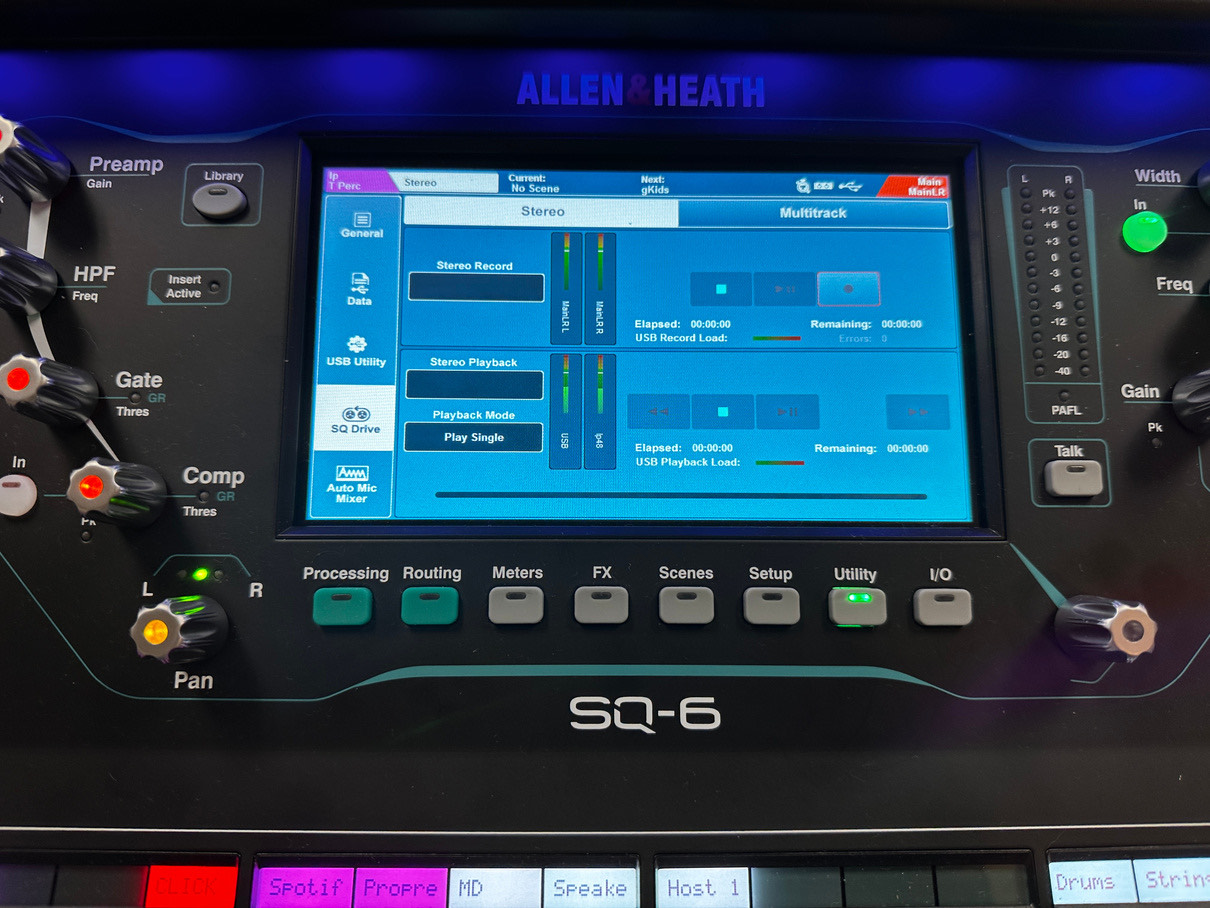
Press Utility, go to USB Utility on the screen, and select Format. This erases the stick, so back it up first.
- Start recording
In the Utility menu, go to the SQ Drive page and press Record on the screen.
“Then this Daniel became distinguished above all the other high officials and satraps, because an excellent spirit was in him.”Daniel 6:3 ESV
Something not working?
Email the Production team and tell us what you see.